Before you begin
A TV browser with internet access and at least one menu. Pairing uses the code shown at venue-menus.com/tv.
Publish everywhere
Connect, organize, and check every menu display.
Open in StudioA TV browser with internet access and at least one menu. Pairing uses the code shown at venue-menus.com/tv.
Screen assignments and commands affect the selected TV; retiring a screen disables its URL and pauses screen-specific schedules.
Add a named landscape or portrait screen to receive a durable display URL. You can open that URL directly on the player, or open venue-menus.com/tv on the television and enter its short code in Studio.
Pairing connects that browser to an existing screen. It does not create or publish a menu.
Use names that identify the physical location, such as Main bar left or Patio portrait. Screen groups let schedules and bulk commands target areas such as Bar or Patio. A group schedule follows current membership; moving a screen into a group does not rewrite its default menu.
Retiring a screen disables its URL and pauses screen-specific schedules. Restoring it reactivates the screen, but those schedules remain paused for review.
Players report the menu, version, page position, connection state, and offline readiness they rendered. Use the Needs attention filter for missing reports, unexpected menus or versions, and expired or failed commands.
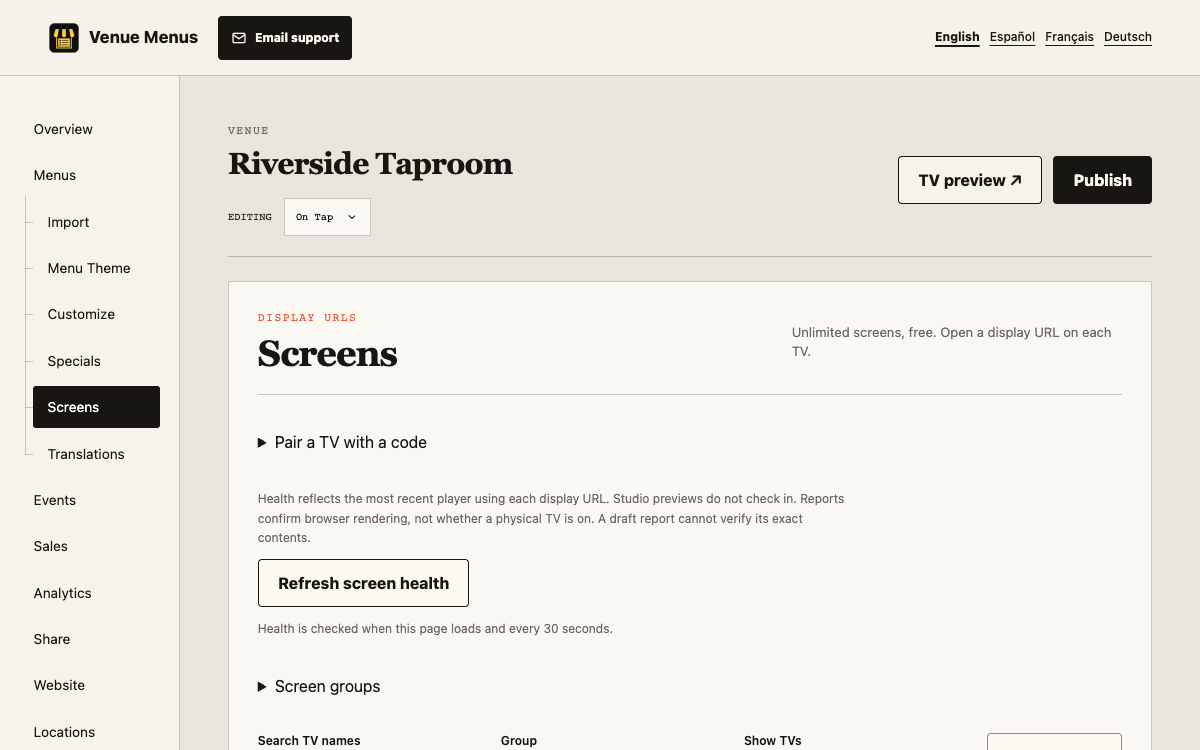
A report proves browser rendering, not that the physical panel is on or visible. Studio previews never report health.
Identify temporarily labels a connected screen so staff can match Studio to the room. Reload asks the player to refresh. Bulk reload selects visible active TVs or a group and reports success or failure per screen; retry only the failed requests.
The player stores its latest menu for offline startup. Connectivity is still required for new publications, schedules, pairing, health reports, and remote commands.
Choose a menu and a Display: Menu list or Flavor map. Map screens show a single chart and do not take a page from your menu-list screens.
Screen health reports browser rendering, not whether the physical television is powered on. Studio previews do not check in.
Use Identify before changing an uncertain screen. Retry expired reloads after checking that the player is connected.
Still stuck? Email Venue Menus support with the location, menu or screen name and the action you were taking.