Skip to content
Venue MenusDocumentation

Start here

Getting started

Build, review, and publish your first drinks menu.

For Owners and staffReviewed September 15, 2026
Open in Studio

Before you begin

An email address and the name of your venue.

What changes

Publishing saves a version and makes the menu available on the outputs you choose.

Create the account

  1. Choose Start free, enter the venue name and an email address, then open the sign-in link sent to that address.
  2. Venue Menus creates an organization, its first location, an On Tap menu, and one landscape screen.
  3. Use the location switcher when you operate more than one venue. Each location has independent menus, screens, public links, and Square connection.

No subscription is required. Menu editing, publication, hosting, themes, team access, locations, websites with one customer-owned subdomain per location, scheduling, imports, analytics, and the Developer API are Free. Credits fund optional AI work.

Build the menu

  1. Open Menus and add an item, or use Import for Square, Untappd, PDF, photo, or text.
  2. Check the section, item name, type, description, serving labels, prices, availability, and beer details.
  3. Open Preview to see the latest saved version. Use Menu Theme and Customize to shape the presentation.

Saving an item changes the draft. It does not silently change what guests see.
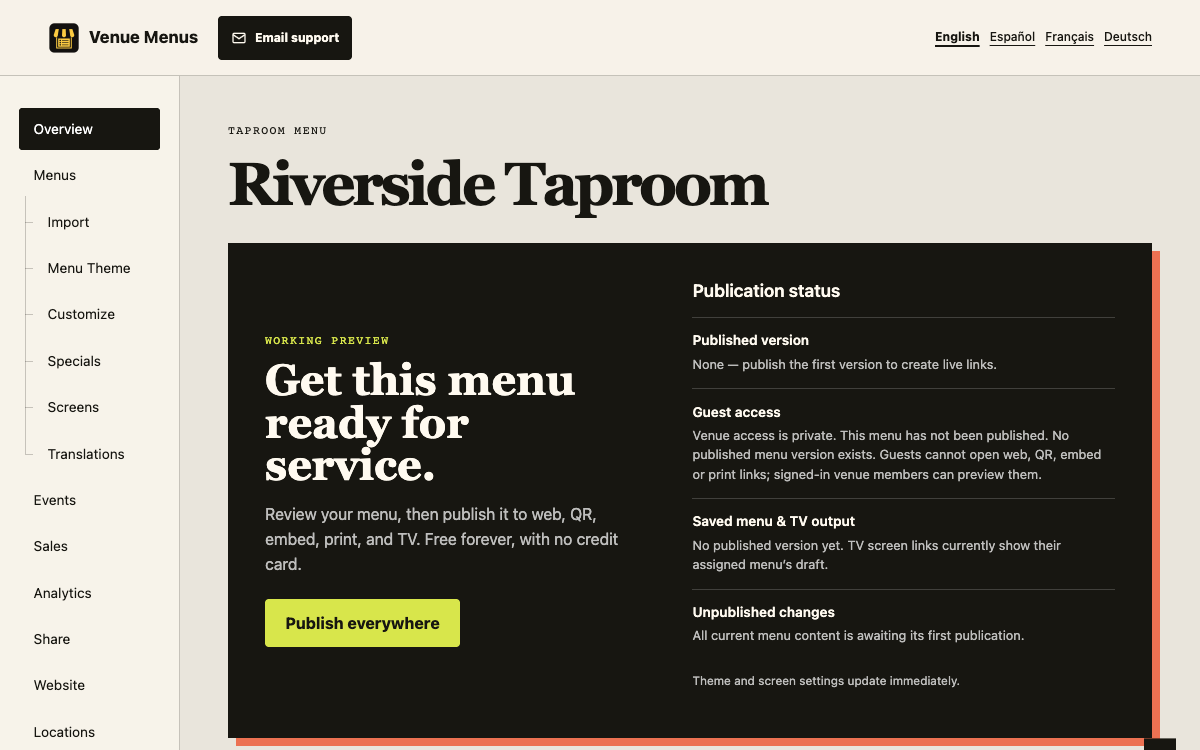
Venue Menus Overview showing setup steps and output previews
Overview keeps the working menu, TV status, and sharing outputs together.

Publish everywhere

  1. Review the draft and resolve any guest-access blockers shown on Overview.
  2. Choose Publish. This saves a numbered menu version and enables guest access when required.
  3. Open Share & print for the web link, QR code, embed, and printable menu. Assign the menu to TVs under Screens.

Later draft edits remain private until the next publication. Theme changes and some account-wide settings have explicitly immediate behavior; Studio labels those controls.

Connected assistants (MCP)

Connect an assistant to work with your menus and venues. Access is Free and follows your current role and the permissions you grant. Set up an assistant connection.

Limits and boundaries

Core venue tools are Free. Optional AI work and permanent branding removal use credits.

If something goes wrong

If a save fails, keep the page open and retry. Your entered values remain in the form.

Still stuck? Email Venue Menus support with the location, menu or screen name and the action you were taking.